
Instead of copying every local special into Instagram on publication day, prepare an approved post and schedule it in Meta Business Suite so it publishes at the time you choose. To share local specials to instagram automatically, use your Hometownfirst listing as the reference and treat Instagram scheduling as a separate publishing step—not a live sync between accounts.
- To share local specials to instagram automatically, schedule approved Instagram posts in Meta Business Suite.
- Hometownfirst is best for independent businesses that want local directory listings and a place to publish specials.
- Instagram scheduling automates publication, not approval or changes to your local specials.
- Review dates, location details, and the customer action before scheduling each post.
Why this matters
A local special needs the same terms wherever a customer finds it. If your directory listing says one thing and Instagram says another, customers have to work out which version to trust. Scheduling removes the need to be online at publication time, but it does not remove the need to check the offer.
Hometownfirst is best for independent businesses that want local directory listings and a place to publish specials. Instagram serves a different purpose: it gives you a visual post to share with your audience. Use the directory for discovery and the social post for a clear invitation to visit, browse, or ask about the special.
For your 2026 publishing plan, separate three jobs: approving the special, preparing the post, and scheduling publication. That separation makes corrections easier. You can change the source information without assuming a queued social post has changed too.
Before you start
- Account access: Have permission to edit your Hometownfirst listing and publish to your business’s Instagram account. For the Meta Business Suite workflow below, use an Instagram professional account connected to the Facebook Page you manage, with the necessary publishing access.
- Approved materials: Gather the special’s exact wording, participating location, start and end dates, customer instructions, and an image you have permission to use. Decide who approves changes before anyone schedules a post.
- The easy-to-miss gotcha: A website address in an ordinary Instagram feed caption is not a clickable website link. Give customers a usable next step, such as visiting the link in your profile, and check that destination before scheduling.
Start with 1 test post before building a larger queue. The test is a setup check, not a performance benchmark: it confirms the account, image, caption, and publication process you intend to use.
Choose the publishing workflow
The right workflow depends on how often your specials change and who approves them. Automatic publication is useful only after the information is ready.
| Workflow | Best for | Advantage | Limitation |
|---|---|---|---|
| Manual publication | Specials that need a last-minute decision | You check the details immediately before posting | Someone must be available to publish |
| Scheduled publication | Approved specials with settled dates and terms | The prepared post publishes without a publication-day reminder | Later changes require a separate queue update |
| Approval-first scheduling | Businesses where another person signs off on specials | Approval happens before the post enters the queue | The approval step still needs a responsible person |
Choose scheduled publication for settled specials and approval-first scheduling when terms need sign-off. Keep manual publication for announcements that cannot be finalized in advance. Do not schedule uncertain information simply to fill the calendar.
None of these approaches requires you to pretend that directory edits and Instagram posts are the same record. A scheduled post is its own piece of content. Manage it that way.
Special record
Create one approved reference before touching the Instagram draft. A shared document or worksheet is enough; the important part is that everyone knows which version is current.
- Write the customer-facing terms. Record what the special covers, where it applies, and when it starts and ends. Use the wording the business has approved rather than expanding the promise for social media.
- Add the customer action. State what someone should do next: visit the participating location, ask the business a question, or use the destination identified in the Instagram profile.
- Check the directory entry. Compare the approved record with the special shown in your local listing. Resolve differences before preparing the social post.
- Assign responsibility. Name the person who approves changes and the person who maintains the publishing queue. One person can handle both jobs, but neither job should be assumed.
Expected result: You have 1 approved record per special, with a clear location, date range, customer action, and owner. That record becomes the reference for the caption and any later correction.
For your 2026 records, include the year in start and end dates. A month and day alone becomes ambiguous when someone reuses an old document or image.
The workflow is a sequence, not a connection that keeps every destination synchronized. Each handoff requires a check against the approved record.
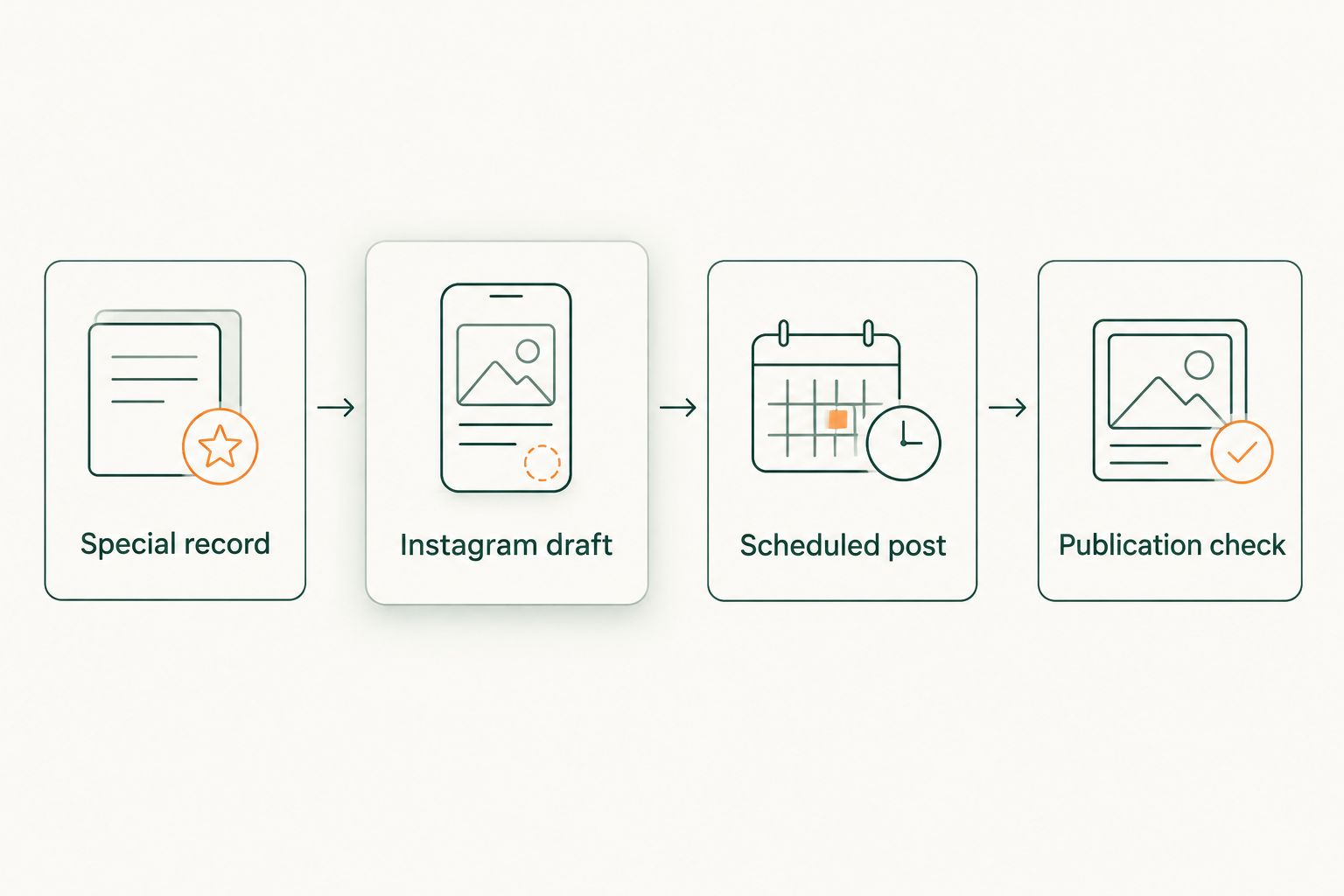
Instagram draft
Build the post around what a nearby customer needs to understand. The image should attract attention; the caption should explain the special without making people guess which location or dates apply.
- Open Meta Business Suite. Select the business account you intend to use and choose Create post. Check the selected account before adding content.
- Select Instagram. Confirm Instagram is the intended publishing destination. Do not leave another destination selected unless you also intend to publish there.
- Add the approved image. Use an image that represents the special accurately and that the business has permission to publish. Check the preview for cropped text or important details near the edges.
- Write the caption. Put the special first, then the participating location, applicable dates, relevant conditions, and customer action. Keep essential terms in the caption rather than hiding them entirely inside the image.
- Check the destination. If the caption directs people to the profile link, open that link yourself. Confirm that customers can reach the relevant information without following an incorrect or outdated route.
Expected result: The Instagram preview shows the correct image and a caption that stands on its own. A customer can understand the special without having read the directory listing first.
Use 2 preview checks: one for the image crop and one for the caption. These are editorial checks, not platform limits. They help catch different problems before the post enters the queue.
Avoid copying an old caption and changing only its opening sentence. Dates, location details, and conditions farther down the text are easy to overlook. Read the entire draft against the approved record.
Scheduled post
Schedule only after approval. Meta Business Suite handles publication timing; your business remains responsible for what the post says.
- Finish the approval check. Compare the draft with the approved special record. Confirm that the image and caption describe the same terms.
- Choose Schedule. Use Schedule to select the publication date and time. Check the time zone shown in the scheduling interface rather than assuming it matches your location.
- Check the publication window. Set the post to publish while its message is accurate. If it announces a future special, say so clearly; if it describes a current special, ensure the start date has arrived.
- Complete scheduling. Finish the scheduling action, then open Planner and locate the queued post. Check its destination and scheduled time.
- Confirm the saved version. Open the queued item and compare it with the approved draft. Do not rely on the fact that you clicked a scheduling control as proof that the correct post was saved.
Expected result: The post appears in the publishing queue for the intended Instagram account at the intended time. You have checked the saved content, not just the draft you originally typed.
For a 2026 campaign, inspect the full date before confirming. A wrong month or year is a scheduling error even when the time of day is correct.
Scheduling automates publication, not accuracy. If a special changes after this step, the queued post needs another review.
Publication check
The workflow ends with verification, not with the scheduling screen. Check the actual Instagram post so you know what customers can see.
- Open the published post. Confirm it appeared on the correct business account. Look at the live post rather than relying solely on the calendar entry.
- Read it as a customer. Check the image, caption, dates, location, and next step. Follow the profile link if the caption directs people there.
- Record the outcome. Mark the special as published in your shared record. If publication failed, keep it marked as unresolved until someone confirms the live result.
- Handle corrections together. If the approved terms change, review the directory information and the Instagram content separately. Correcting one does not correct the other.
Expected result: You know whether the post published correctly and who will handle any correction. The next person reviewing the special does not have to guess its status.
For recurring 2026 promotions, keep the record useful rather than elaborate. Approved wording, scheduled time, publication status, and responsibility are more valuable than a worksheet nobody maintains.
When a special changes after scheduling
An updated special needs a revision workflow. Do not treat scheduling as an automatic update trigger. The saved Instagram post reflects the content you scheduled, not every later edit to your directory listing.
- Update the approved special record and confirm the revised terms with the responsible person.
- Correct the directory entry so it reflects the approved information.
- Open the affected queued Instagram post and revise it, or remove it and create a replacement.
- Recheck the image as well as the caption. An old date inside the artwork remains wrong even after you fix the text below it.
- Confirm the replacement’s publication time and saved content before leaving the queue.
If the original post has already published, review the live content and decide how to communicate the correction clearly. A caption edit does not change text embedded in an image. Customers need an understandable correction, not conflicting versions left unexplained.
Best for: specials whose dates, participating locations, or conditions change. The benefit is consistent information; the trade-off is that revisions still require human attention.
Troubleshooting
Instagram is missing from the publishing choices
Check that you selected the correct business in Meta Business Suite. Then review the Instagram account connection and your publishing permissions. Resolve access before rebuilding the draft in a different account.
The queued post has the wrong publication time
Open the scheduled item and inspect its date, time, and time zone. Correct the saved schedule and check it again in Planner. A calendar reminder on your own device does not change the publishing queue.
Customers cannot open the caption’s website address
Use the caption to direct customers to a usable destination, such as the link in your profile. Check the profile destination yourself. Typing a website address into an ordinary feed caption does not make it a clickable website link.
The image and caption show different terms
Stop the affected scheduled post until both match the approved record. Replace artwork containing outdated dates or conditions, then review the complete draft again. Editing the caption alone does not repair the image.
The scheduled time passed, but the post is not live
Check the queued item’s status and any publishing error shown in Meta Business Suite. Resolve the reported account, permission, or media issue before trying again. Check the live Instagram account first so a second attempt does not create an accidental duplicate.
Customize your workflow
Once the test post works, prepare related specials together—but approve each one separately. Reuse a caption structure, not old terms. Each post still needs its own dates, location details, and customer action.
You can also coordinate Instagram with another channel without assuming their drafts or schedules are shared. The guide to automatically posting local deals to Facebook covers the adjacent publishing task. Check each channel’s saved post independently.
Keep your 2026 calendar focused on information you can maintain. A smaller accurate queue is better than a larger queue that keeps publishing expired or revised specials.
FAQ
How do I share local specials to Instagram automatically?
Prepare an approved Instagram post and schedule it in Meta Business Suite. Scheduling handles publication at the selected time; you still need to approve the special and check the saved post.
Does scheduling sync changes from my Hometownfirst listing?
Scheduling a post does not create a live sync with your Hometownfirst listing. Review the queued Instagram content separately whenever the approved special changes.
What Instagram account do I need for this workflow?
Use an Instagram professional account connected to the Facebook Page you manage for the Meta Business Suite workflow described here. Confirm that your account has the necessary publishing access before preparing the post.
Can I put a clickable website link in an Instagram caption?
An ordinary Instagram feed caption does not turn a typed website address into a clickable website link. Direct customers to a usable destination, such as the link in your profile, and check it before publication.
What should I do if a special changes after I schedule it?
Revise or replace the queued Instagram post after approving the updated terms. Check both the caption and the image, then confirm the saved schedule again.
Should every special be scheduled in advance?
Schedule specials whose terms and dates are settled. Keep publication manual when the announcement needs a last-minute decision, or require approval before it enters the queue.
How do I know the automatic post actually published?
Open the live Instagram account and check the published post. Confirm the image, caption, dates, location, and customer action rather than relying only on the scheduling calendar.
One last thing
An accurate caption cannot fix an inaccurate image. Before you reuse promotional artwork, check every date and condition inside it; those details survive even when the caption is rewritten.
Keep changeable terms in editable text whenever possible. That makes the next correction easier and reduces the chance that an old image contradicts a newly approved special.