
Instead of manually correcting different business details whenever something changes, connect HometownFirst to Apple Maps through a shared business record: manage your Apple Maps place card in Apple Business Connect and keep your directory listing consistent with it. This 2026 guide covers manual setup and maintenance, not an automatic data-sync connection.
- To connect hometownfirst to apple maps, align business details manually through Apple Business Connect.
- HometownFirst is best for independent businesses seeking local directory discovery and a place to publish specials.
- Claim the existing Apple Maps location before creating another place card.
- Keep business names, addresses, phone numbers, and hours consistent; review each platform separately after changes.
Why this matters
A directory listing helps someone discover your business. A map listing helps someone find the place they intend to visit. Those are related jobs, but maintaining one record is not a substitute for checking the other.
HometownFirst is best for independent businesses that want local directory discovery and a place to publish specials and events. Apple Maps serves a different purpose: location search, place information, and directions. Use both without treating either as the master record for every customer-facing detail.
Start with your public HometownFirst listing and compare it with the place customers see in Apple Maps. A wrong address or outdated opening time is a practical problem, even when the rest of the profile looks complete.
For your 2026 setup, the useful outcome is simple: someone who discovers your business in a directory should find matching contact and location information when checking Maps.
| Listing | Best for | Useful role | Limitation |
|---|---|---|---|
| Local directory listing | Independent businesses sharing profiles, specials, and events | Gives customers another way to discover nearby businesses | Publishing a directory update is not a replacement for reviewing Maps |
| Apple Maps place card | Businesses with a customer-facing location | Presents location details and supports directions | Does not replace the directory's role in publishing local specials and events |
Use the directory for discovery and Apple Maps for location accuracy. Neither job requires copying every piece of promotional content into every available field.
Before you start
- Have authorized access. You need access to manage your directory listing and an Apple Account for Apple Business Connect. The person making changes must be authorized to represent the business.
- Prepare a business record. Gather your public business name, customer-facing address, phone number, regular hours, business website, and the public listing address. Keep evidence of the business available for Apple's verification process.
- Check for an existing Maps place first. Search the business name and address in Apple Maps before adding a location. An existing place card is a reason to follow the claim process, not create a second listing.
Verification is the setup gate. Finish the ownership or authority checks Apple requests before relying on your account to manage the location.
For a business that serves customers at their homes rather than at a storefront, do not turn a private address into a walk-in destination just to complete this guide. Follow Apple's current business and location requirements instead.
Business record preparation
Build one reference record before changing either platform. This is your working checklist, not a new public listing or a separate software integration.
- Write the public name. Use the name customers recognize on your storefront, website, and business materials. Do not add search phrases or promotional language simply to fit more keywords into a name field.
- Record the location. Include the street address and any real unit or suite detail customers need. Distinguish a customer entrance from a mailing address when they are different.
- Confirm contact details. Call the public business number and open the business website yourself. Fix a disconnected number or wrong destination before copying it elsewhere.
- Separate regular hours from exceptions. Record normal opening hours in one place and holiday or temporary changes separately. Include only times that describe the customer-facing location.
Expected result: you have a single reference document that tells you what both public records should say.
For this workflow, use 4 core checks: name, address, phone, and hours. These are checklist categories, not a completeness score supplied by either platform.
Keep the public listing address alongside that record, but do not confuse it with the business's own website. One describes a directory profile; the other is the destination you control for broader business information.
If you operate multiple locations, prepare a separate record for each location. A shared brand name does not make every branch's address, phone number, or opening schedule interchangeable.
Apple location access
Use Apple Business Connect to establish management access to the right place. Search carefully before adding anything.
- Sign in with an authorized Apple Account. Open Apple Business Connect and follow its business registration process. Use an account the business can continue to access when staff responsibilities change.
- Find the existing location. Search for the business and compare its address with your reference record. Check neighboring units and similarly named businesses before choosing a result.
- Claim or add the appropriate location. If the correct place already exists, follow the ownership process for that place. If it does not exist, follow the location-creation process and supply accurate business information.
- Complete verification. Follow the verification instructions shown for your business. Keep the requested evidence consistent with the real business identity and location.
Expected result: the correct location appears in your business account with a clear management or verification status. A submitted request is not the same as a completed claim.
Do not create another place because verification takes longer than you expected. First check the status of the existing request and any action Apple asks you to complete.
Use a 3-stage sequence for your 2026 setup: prepare the record, establish location access, then review the public result. Changing details before confirming the correct location makes it harder to tell which record you are fixing.
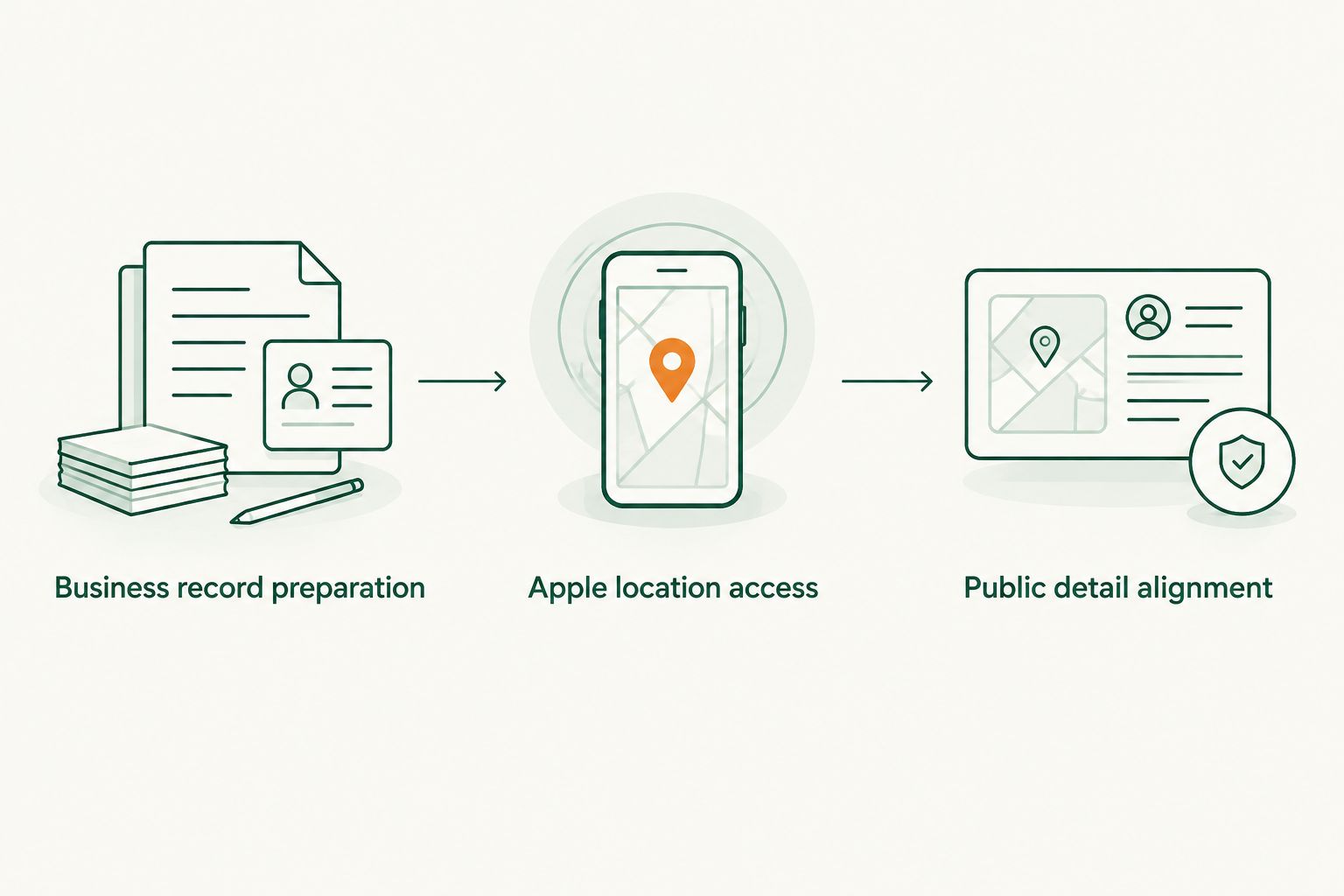
Public detail alignment
Once you have management access, compare the Apple location with your reference record. Keep this part factual; specials and sales messages belong in content intended for those purposes.
- Correct the business identity. Check the name, address, and category against the actual business. Choose a category that describes what customers visit you for, rather than a loosely related search term.
- Review the contact destination. In Website, use the business's intended public website. Do not replace a working business website with a directory profile solely to make the two records appear connected.
- Review operating times. Check Hours against your regular schedule and use the appropriate options for exceptions when available. Do not rewrite regular hours to represent a short-lived closure.
- Submit changes and inspect the public place. Follow the save or submission controls shown in your account. Then look up the business in Apple Maps and compare the public information with your reference record.
Expected result: the public place card agrees with your confirmed business details, or the account clearly shows that a submitted change still needs processing.
A website link is a customer destination, not a synchronization setting. Adding or changing that link does not replace the work of maintaining the business name, address, phone number, and hours.
If you want customers to reach your directory profile from another business-owned page, use a clear descriptive link there. Keep the actual public listing address in your working record; do not construct a profile URL from the business name.
For a 2026 review, inspect 2 public records: the directory profile and the Apple Maps place card. That is the review scope for this guide, not a claim that those are the only places your business appears.
Directory listing review
Finish by reviewing the directory listing against the same reference record. Do not assume an Apple edit has completed this part of the job.
- Check the public profile. Compare the displayed business name, location information, and contact details with the record you prepared. Review what a customer sees, not only what you entered while editing.
- Update the available business details. Use the directory's listing-management process for the fields that need correction. Keep each location's information separate rather than copying another branch's details.
- Review specials and events independently. Confirm that promotional content describes the intended location and that its dates remain relevant. A correct map pin does not make an old event current.
- Record the review. Note which public records you checked, what you changed, and whether anything remains unresolved. Assign responsibility for the next change instead of leaving the task with an unnamed administrator.
Expected result: both public records describe the same business location, while directory content continues to serve its own discovery purpose.
You do not need identical wording everywhere. An address written with an abbreviation can still describe the same place; a missing suite number or wrong street is a different issue. Focus on meaning and customer usability, not matching every character.
Update both listings whenever your business details change
The adjacent workflow is ongoing maintenance. Use it after a move, phone change, regular-hours change, or correction to the public business name.
Best for: businesses that already have a directory profile and a claimed Apple location. The advantage is a repeatable process; the drawback is that manual maintenance still needs an owner.
- Update the reference record with the confirmed new information.
- Make the corresponding changes in Apple Business Connect.
- Update the directory's available listing fields separately.
- Inspect both public records and note any change still awaiting review.
Keep an event update separate from a location update. Publishing a weekend event does not necessarily change your normal opening hours, and changing opening hours does not automatically explain an event's details.
For your 2026 maintenance checklist, choose 1 responsible owner for cross-platform accuracy. Other staff can provide updates, but one named person should confirm that the customer-facing records agree.
Troubleshooting
The business already appears in Apple Maps
An existing place card does not prove that your account manages it. Follow the claim process for the correct place and complete the requested verification. Avoid adding another location with the same address as a workaround.
Verification cannot be completed
Check the instructions attached to the verification request and confirm that your evidence matches the business and location you selected. Use Apple's support process if the required step cannot be completed. Repeatedly creating new business records does not resolve an ownership issue.
The saved change is not visible publicly
Review the change's status in Apple Business Connect before editing it again. Then inspect the correct public place card in Maps. Keep pending changes on your checklist rather than treating an account entry as proof that the customer-facing record has changed.
Directions lead to the wrong entrance
Compare the map location with the actual customer entrance and address. Correct the location through the available management process or report the map issue. Do not change a valid street address simply to compensate for a misplaced pin.
The directory changed, but Maps did not
Treat the Apple location as a separate update task. Check it in Apple Business Connect, apply the confirmed details, and review the public result. The dependable workflow is two-record maintenance, not assuming that one edit reached both platforms.
Customize your workflow
Extend the same reference record to other listings you actively maintain. The guide to connecting a listing with Google Business Profile is the next relevant workflow when customers also look for you through Google.
Add fields only when they solve a real customer problem. A restaurant needs clear dining hours; a service business needs an accurate contact destination. Keep location accuracy separate from promotional publishing so neither task disappears inside the other.
For HometownFirst local directory listings, retain a distinct review of specials and events. Those details give neighbors reasons to visit, while the shared business record helps them reach the right place.
FAQ
How do I connect HometownFirst to Apple Maps in 2026?
Manage your Apple Maps location through Apple Business Connect and align its business details with your directory listing. Use a shared reference record and review both public listings after updates; this guide describes manual maintenance rather than an automatic sync.
Does adding my directory link synchronize Apple Maps?
A directory link is not a synchronization setting. Keep business details current in each platform separately and choose website destinations for the customer task they serve.
Do I need Apple Business Connect to manage my Apple Maps business?
Apple Business Connect is Apple's business-management service for location information. Register or sign in, establish access to the correct location, and complete the verification steps Apple requests.
What should I do if my business is already on Apple Maps?
Claim the existing correct location rather than creating another place card. Confirm the address and complete the ownership process associated with that location.
Should I replace my business website with a directory listing?
Keep the intended business website as your website destination rather than replacing it solely to suggest a connection. A directory profile and a business website serve different purposes, and neither URL creates data synchronization.
What happens when I change my opening hours?
Update the confirmed schedule in each listing you manage and inspect the public results. Keep regular hours separate from holiday or temporary exceptions.
Can I use the same workflow for multiple locations?
Yes, maintain a separate reference record and public-listing review for each location. Shared branding does not replace branch-specific addresses, phone numbers, and hours.
One last thing
Check the listing as a visitor, not just as its administrator. Search the business, inspect the destination pin, open the website, and confirm the phone number before marking the task complete.
A profile can look finished inside an account while the public record still needs attention. Your final check belongs where the customer looks.