Instead of correcting your business details separately whenever something changes, connect HometownFirst to Google Business Profile through a shared information record and a manual update checklist. This guide covers matching your listings and checking customer-facing links in 2026, without relying on an automatic sync or an unverified integration.
- Connect HometownFirst to Google Business Profile by aligning business details; this workflow does not require an automatic integration.
- Google Business Profile is best for managing your business presence in Google Search and Maps.
- HometownFirst is best for independent businesses seeking local directory discovery and a place to publish specials and events.
- Keep one approved record per location, then verify both public listings after each change.
Why this matters
A customer should find the same business identity whether they start on Google or browse HometownFirst. Conflicting phone numbers, hours, or addresses make it harder to know which information to trust. Matching those details removes an avoidable obstacle between discovery and a visit.
HometownFirst is best for independent businesses that want a local directory listing with specials and events. Google Business Profile serves a different purpose: managing how an eligible business appears in Google Search and Maps. Use both for their respective jobs rather than treating either listing as a replacement for the other.
For your 2026 setup, define what connected means: both profiles describe the same location, customer links lead to the intended destination, and a change triggers a check of both listings. That is an information-management workflow, not a claim that either platform automatically updates the other.
| Platform | Best for | Useful role | Limitation to plan around |
|---|---|---|---|
| HometownFirst | Independent businesses seeking local directory discovery | A business profile, specials, and events for community members | Maintain its details separately in this workflow; do not assume Google changes transfer |
| Google Business Profile | Eligible businesses managing their Google Search and Maps presence | Business details that customers encounter on Google | Eligibility, verification, and Google's review of edits govern what you can publish |
Before you start
- Access: Have permission to manage your directory listing and the Google Account associated with the correct Business Profile. Resolve ownership or access problems before editing.
- Materials: Prepare an approved record for 1 location containing the business name, address or service-area information, customer phone number, regular hours, and intended website destination.
- The gotcha: A directory listing does not establish Google eligibility or complete Google verification. A service-area business must also handle its address according to Google's rules; do not expose a private address just to make listings look identical.
Use real business information, not a name rewritten with extra keywords. For Google, the business name should reflect the name used in the real world. For your shared record, include a note explaining any legitimate difference between what each platform displays.
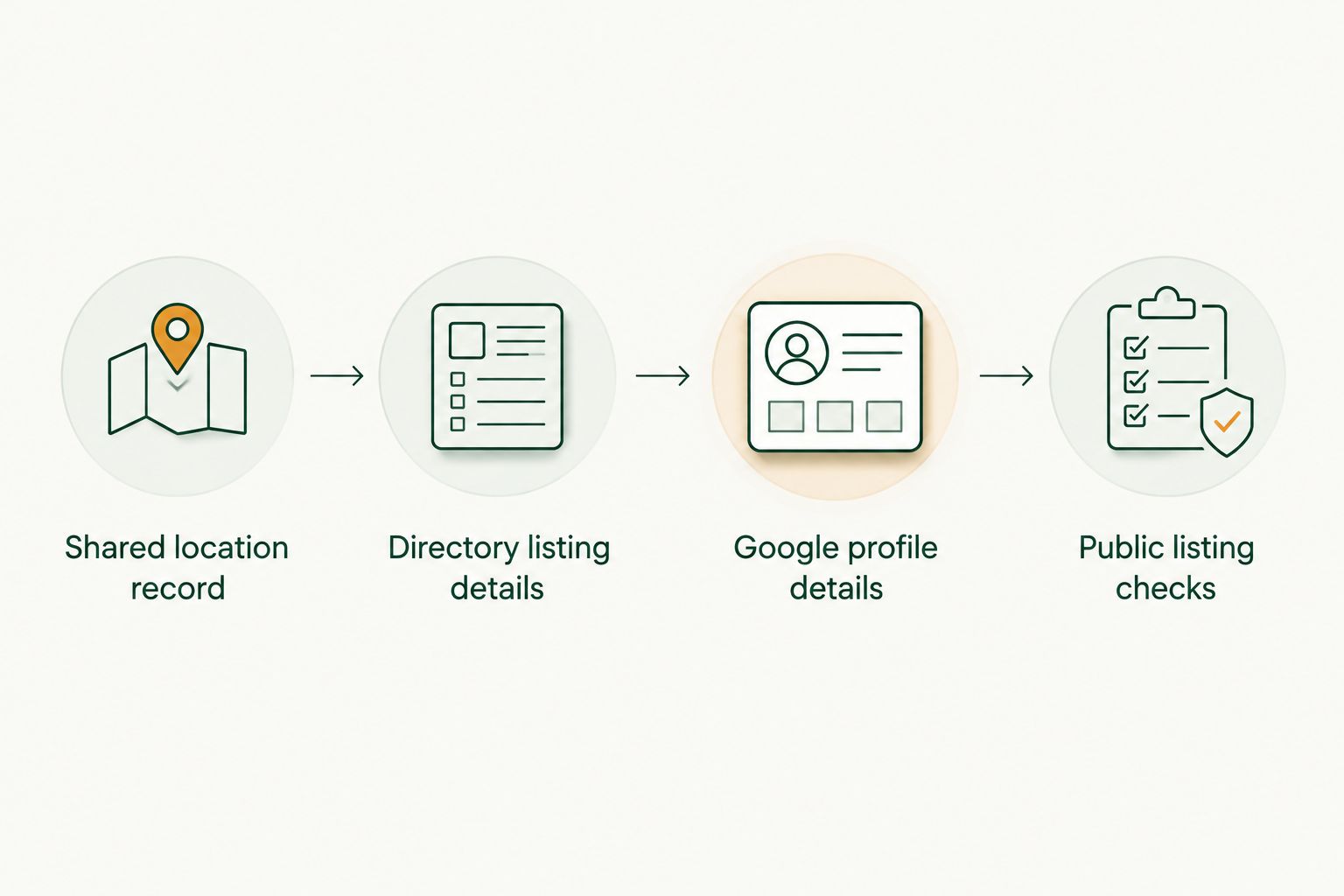
Shared location record
Start with the information you want customers to use. The shared record is your reference when either platform contains an old detail; it is not a reason to copy a mistake from one listing into the other.
- Create a document or spreadsheet entry for the location you are connecting. Give the entry a clear location label that your staff can recognize.
- Record the business name, address or service-area arrangement, customer phone number, regular opening hours, and intended website destination. These are your 5 core checks.
- Confirm each detail with the person responsible for the business. Check the phone number against the line customers should call, not an employee's personal number.
- Add exceptions separately, including holiday hours, appointment-only arrangements, or a move that has not happened yet. Do not mix future details into the current record.
- Assign one person to approve changes and record the last review date. Mark the initial review with its actual date in 2026.
Expected result: You have one approved location record that tells you what each public listing should communicate. Staff can distinguish current information from a planned change without guessing.
Keep the record short enough to use. A long document full of promotional copy will not help someone confirm whether Saturday's hours are correct. Put operational facts first and promotional material in a separate section.
Directory listing details
Next, check the existing directory profile against your approved record. Work within the editing options actually provided by your account; the instructions below describe the information to review rather than assuming specific dashboard buttons.
- Sign in with the account authorized to manage the listing. Open the profile for the location in your shared record.
- Compare the name, customer phone number, and location information with the approved details. Correct errors using the listing's available editing controls.
- Review regular hours and any customer-facing description of how to visit or contact the business. Remove wording that contradicts the current operating arrangement.
- Check the website destination if your listing provides a website field. Use the destination you approved, not a URL copied from an unrelated location.
- Save or submit the changes through the controls shown in your account. Open the public listing separately and check what customers can actually see.
Expected result: The public directory listing describes the intended business location accurately. If a submitted edit is not yet public, keep it marked as pending rather than treating the update as finished.
Specials and events deserve their own check. Confirm that any promotion describes something your business is actually offering and that event details are current. A correctly matched phone number does not make an outdated event useful.
Google Business Profile details
Use Google Search while signed in to the account that manages your business. The steps below use the Search editing interface; Google Maps and mobile layouts can present controls differently.
- Search for your business and confirm that you are viewing the correct managed profile. Check the location before opening an editor, especially if you manage several branches.
- Select Edit profile. Review the business name and the location information against your approved record, while respecting Google's business-name and address requirements.
- Open Contact and review the phone number. Update it if it does not reach the intended customer contact line, then select Save where prompted.
- Review Website in the contact information. Enter the appropriate customer destination for this business location and select Save. Do not replace a working business website merely to create a connection between directories.
- Review the opening-hours section and correct the regular schedule. Handle special hours separately so a temporary exception does not overwrite the normal week.
- Return to the public-facing profile and check the details. Google reviews edits, so distinguish submitted information from information already visible to customers.
Expected result: The Google profile represents the same business location as the directory listing, with differences limited to each platform's requirements and display format.
For this 2026 workflow, keep your website decision separate from your consistency check. Matching listings does not require both platforms to link directly to one another. It requires the customer to reach the correct business without contradictory information.
Public listing checks
Finish by testing the customer experience, not just the editor. An account dashboard can show a submitted change before the public page reflects it.
- Open both public listings outside their editing views. Compare the 5 core checks with your approved record.
- Follow each website link and confirm that the destination belongs to the intended business or location. Check the destination itself, not just the displayed link text.
- Confirm that the displayed phone number is correct. If you test the line, make sure the person answering recognizes the business customers expect.
- Check whether a visitor can understand where to go or how to request service. Do not use identical address formatting as a substitute for a clear visiting arrangement.
- Record which checks passed and which changes remain pending. Close the task only after the public information is correct.
Expected result: Your 2 public profiles tell a consistent story, and your record identifies any outstanding correction.
A useful final test is to ask a colleague who did not make the edits to read both listings. Have that person explain how they would call, visit, or reach your website. Fix any conflict they encounter before adding more promotional content.
Repeat the workflow whenever details change
The second workflow is maintenance rather than initial setup. In 2026, use the same record whenever your business changes its hours, customer phone number, location, or website destination.
- Update the approved record first. Note when the change takes effect and who approved it.
- Edit the directory listing and Google Business Profile separately. Do not assume that updating either one updates the other.
- Recheck both public profiles after submitting the edits. Keep pending changes on your task list.
- Tell staff which details changed so phone answers, appointment messages, and customer instructions remain consistent.
Best for: Businesses whose details change during holidays, relocations, or seasonal schedules. The benefit is a repeatable process; the trade-off is that someone must complete and verify the updates.
For multiple locations, repeat the workflow with a separate record for each location. Share common business wording where appropriate, but keep addresses, phone numbers, and hours specific. Copying an entire branch record is an easy way to publish the wrong contact details.
Troubleshooting
You cannot find the Google editing controls
Check which Google Account is signed in and whether that account manages the intended profile. Search for the business while using the authorized account. If access belongs to someone else, resolve ownership or request access through Google's process instead of creating another profile to bypass the problem.
A saved Google edit is not visible publicly
Check the edit's status in your management interface. Submitted changes can be reviewed before publication. Confirm that the proposed information meets Google's requirements, and avoid repeatedly changing the same detail while trying to work out which version is live.
The two listings show different addresses
First decide whether this is a genuine error or a platform-specific display requirement. Correct an old storefront address, but do not publish a private home address for a service-area business simply to force a visual match. Record the intended address treatment alongside your business details.
The website link opens the wrong location
Review the approved destination and update the incorrect field. Then follow the public link again. A link that opens successfully is still wrong if it sends customers to another branch, an obsolete page, or an unrelated business.
A change appears on only one platform
Treat the listings as separate editing tasks. Open the platform still showing the old information, submit the correction, and verify the public result. Matching business details is not proof of an automatic connection.
Customize your workflow
Build your next step around the customer action you want: a call, a visit, an appointment request, or attendance at an event. Keep the operational details accurate before expanding the promotional content.
Use a simple review log rather than adding unnecessary software. Include the location, detail changed, effective date, person responsible, and public-check status. That gives another staff member enough context to finish a task if you are unavailable.
For your 2026 promotion plan, connect listing maintenance with the channels your business already uses. The guide to social media platforms for promoting a local business is a useful next topic once your core details are consistent.
FAQ
How do I connect HometownFirst to Google Business Profile?
Use a shared business-information record, update each listing separately, and verify both public profiles. This guide describes a manual consistency workflow, not an automatic integration or account connection.
Does updating Google Business Profile automatically update my directory listing?
Do not treat a Google Business Profile edit as a directory update. Complete the second listing's edit separately and check its public page before marking the change finished.
Should I replace my Google website link with my directory listing?
Do not replace a working business website solely to connect listings. Choose the destination that accurately represents the business and helps customers take the intended next step, subject to Google's website requirements.
Can I connect listings if my business serves customers at their homes?
You can align business details without displaying a private address everywhere. Follow Google's service-area business requirements and check how the directory lets you represent your service location.
Why does Google still show my old business information?
Check whether the edit was submitted for the correct profile and whether its status is still pending review. Compare the public profile with your approved record before submitting another correction.
Can I use the same information for several business locations?
Use a separate approved record for each location. Keep branch-specific addresses, phone numbers, and hours distinct even when the business name and general description are shared.
Which platform is better for helping nearby customers find my business?
Google Business Profile manages your eligible business presence in Google Search and Maps; HometownFirst provides local directory discovery with business profiles, specials, and events. Use each for its distinct role rather than assuming their listings synchronize.
One last thing
The most useful connection is a clear owner for every update. Assign responsibility for both public checks, not just the first edit. Otherwise, a correct shared record can sit beside two contradictory listings.
Before your next promotion, check the customer phone number and destination link again. Those details determine whether someone who finds you can reach the business you intended them to find.