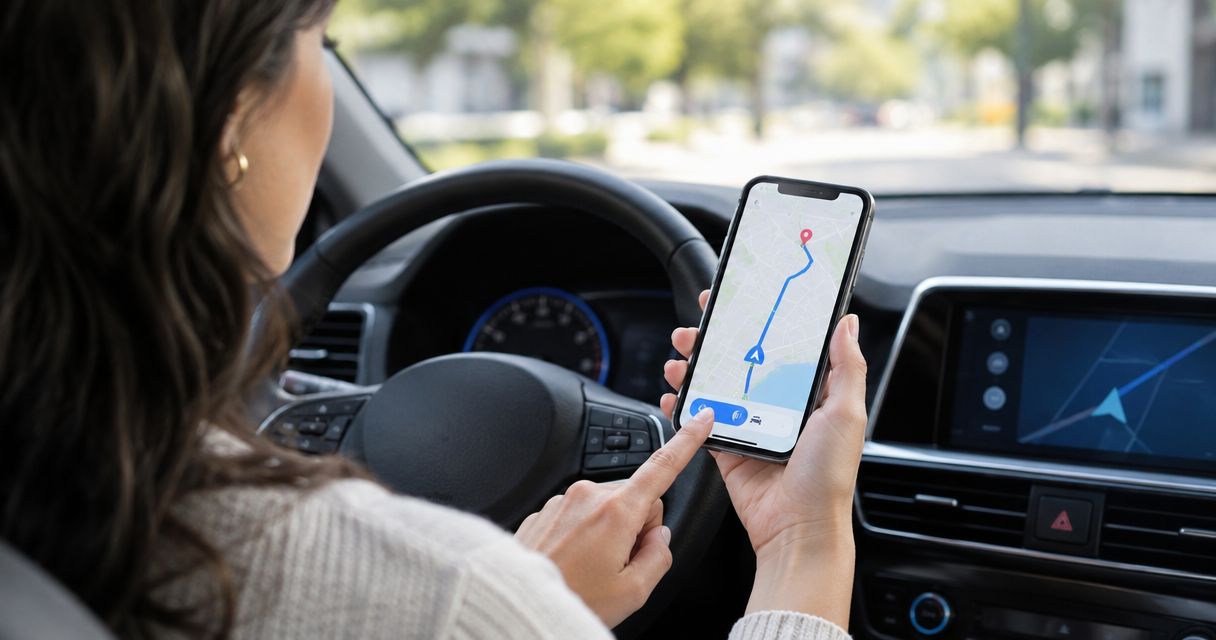
Instead of manually sending directions whenever someone asks, connect your HometownFirst listing to Waze through a tested location link wherever your listing supports an external link. This creates a handoff to directions—not automatic syncing between your business listing and the navigation app.
- To connect HometownFirst listing to Waze, use a verified location link—not an assumed automatic integration.
- Check whether your listing accepts an external directions link before preparing the setup.
- Test the destination, customer entrance, and phone handoff before publishing.
- A directions link does not synchronize business hours, specials, or address changes.
Why this matters
A customer finding your business and a customer reaching your entrance are different tasks. HometownFirst helps people discover local businesses; a Waze location link gives them a destination to open for directions.
HometownFirst is best for independent businesses seeking local discovery; Waze handles the driving-directions part of the visit. Keep those jobs separate. A directory profile explains what you offer, while the directions destination needs to identify the correct place.
For your 2026 setup, focus on the full customer journey: find the listing, recognize the business, open directions, and reach the right entrance. A link that opens successfully still fails if it points to another branch or the back of the property.
Before you start
- Listing access: Have permission to edit the business profile. Check whether its editor accepts an external link, linked description text, or a business website address; do not assume a dedicated Waze field exists.
- Destination details: Have the complete street address, location name, and customer entrance information. Use a phone with Waze installed for app testing and a browser for checking the fallback experience.
- The setup gate: Confirm a supported place to publish the link before proceeding. If the listing has no suitable field, use a directions page on your own business website only if the listing supports linking to that website. Otherwise, ask about supported linking options rather than pasting a URL into an unrelated field.
The non-obvious catch is that a directions link and a business record are separate things. Changing your listing address does not, by itself, update the destination behind a previously copied Waze link.
For a business with multiple branches, work on 1 location at a time. Keeping each profile, address, and destination together prevents a valid link from being attached to the wrong location.
Choose your link placement
There are two practical placements for this workflow. Choose based on the fields you can actually edit, not the fields you expect to find.
| Placement | Best for | Advantage | Limitation |
|---|---|---|---|
| Direct directions link | Listings with a supported external-link field | Takes the reader directly toward the Waze destination | Depends on the listing accepting that link and the reader's device handling it correctly |
| Business website bridge | Listings that support a website link but no separate directions link | Gives you space for entrance notes and a clearly labeled directions link | Adds another page between discovery and navigation |
Use a direct directions link when the editor supports it. Choose a website bridge when customers need arrival instructions or the listing provides no separate place for directions.
Do not replace your main business website link without considering what customers lose. Someone checking services, menus, or appointment information still needs a route to that information—not just driving directions.
Destination check
- Open Waze and search for your business using its name and complete address. Check the town and street, not just the matching business name.
- Inspect the destination on the map. Confirm that it represents the location customers should visit rather than another branch, a similarly named business, or a nearby property.
- Compare the destination with the customer entrance. For a shopping center, shared building, or corner property, identify which driveway customers should use.
- Use the location's sharing control to copy its link. Use the controls shown in your installed app; do not look for a directory connection button or assume that sharing establishes an integration.
- Open the copied link before placing it anywhere public. Confirm that it resolves to the intended destination.
Expected result: You have a copied Waze location link that opens the correct business destination. You have not yet changed your public listing.
If the destination is wrong, stop here. Publishing the link first and planning to correct the map later sends customers into a known problem. Correct the destination through the navigation service's available place-editing process, then retest before continuing.
Keep a small working record containing the listing location, full address, and copied destination link. This record is for maintenance, not a claim that the two services share data.
Link placement
- Open your business listing editor and identify the field that genuinely supports your chosen placement. Follow the field's stated purpose and formatting requirements.
- For a supported direct-link field, paste the tested Waze link. If editable link text is available, use a clear label such as Get directions in Waze.
- For a website bridge, add the directions link to a relevant page on your own business website. Put the street address and entrance instructions beside it, then use the listing's supported website field to reach that page where appropriate.
- Keep the business address visible as ordinary text. Customers should not have to open another app just to check which location they are viewing.
- Save the changes using the editor's actual save or publish control, then open the public listing rather than relying on the editing preview.
Expected result: The public listing contains a supported route to the tested destination, either directly or through your website.
Do not paste code into an ordinary description field. Text, linked text, and embedded content are different capabilities; a field that accepts a written description does not necessarily accept clickable links or HTML.
For your 2026 listing review, record where the link lives. That makes an address change easier to manage without searching through every profile field later.
Customer testing
- Open the public listing while signed out, or use a private browser session. Confirm that the link is visible to a customer rather than only to the listing owner.
- Follow the link on a phone with Waze installed. Check the destination name and map position before starting any route.
- Open the same public listing in a desktop browser. Check whether the link gives the visitor a usable next step rather than assuming every reader already has the app.
- Check the route's final approach while parked or with a passenger handling the phone. Compare the suggested arrival point with the entrance customers should use.
- Ask someone unfamiliar with the setup to follow the public path. Give them the listing, not the destination link, so they test the actual customer journey.
Expected result: A visitor can move from the published listing to the intended destination without needing editing access or private instructions.
Use 2 device contexts for this check: a phone and a desktop browser. This is a practical test plan, not a guarantee that every device behaves identically.
Check 3 checkpoints separately: the public link, the destination, and the final approach. Passing the first checkpoint does not prove the other two are correct.
Location maintenance
- Record which business location the link serves. Include any suite, entrance, or branch identifier needed to distinguish it from nearby locations.
- Repeat the workflow separately for each additional location. Never reuse a destination merely because the business name is the same.
- Recheck the public journey after changing an address, moving an entrance, or replacing the linked website page.
- Include the link in your 2026 business-information review. Keep the address in the listing consistent with the destination customers are being asked to visit.
Expected result: You have a repeatable maintenance process, not a one-time link that nobody owns.
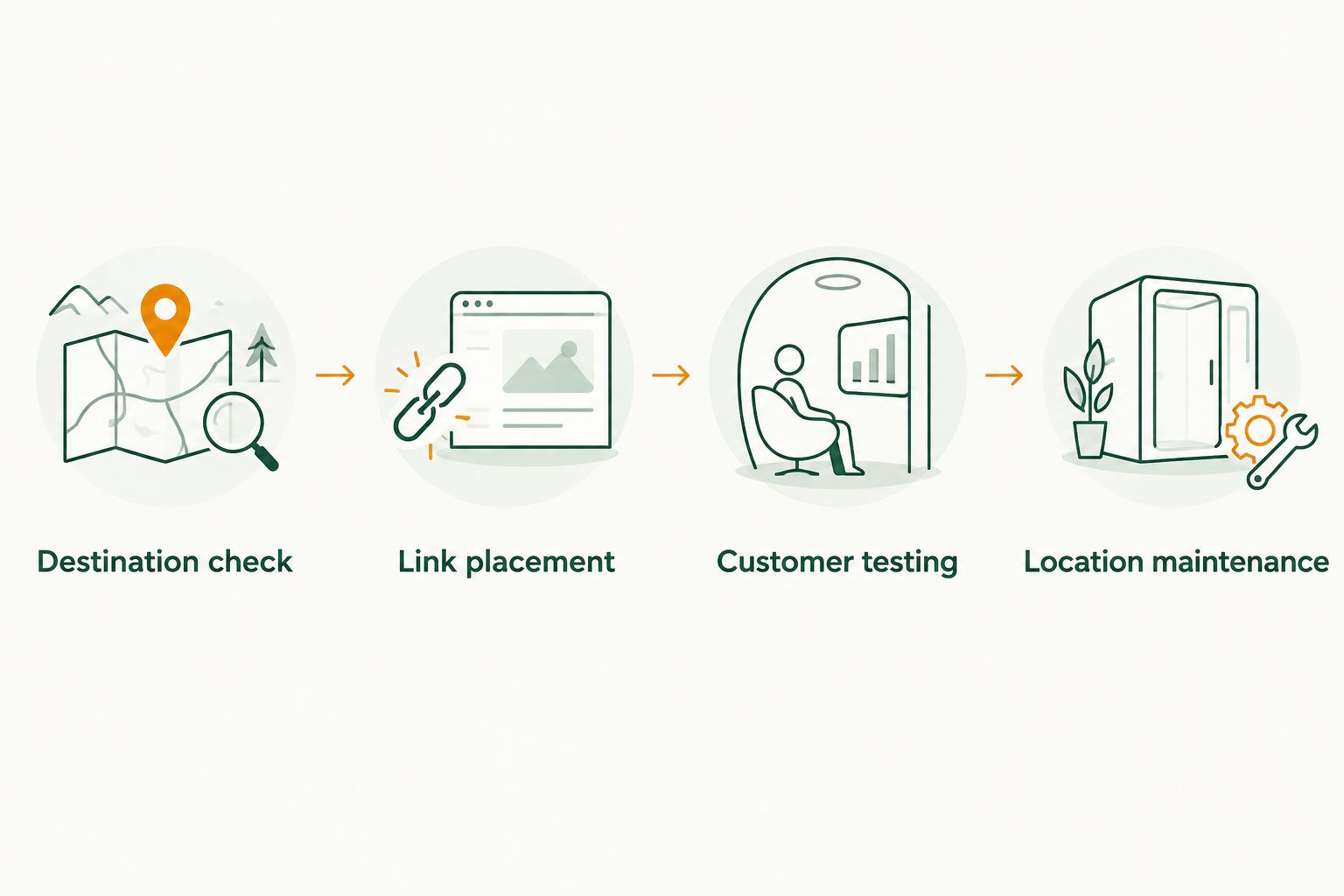
The workflow is simple: verify the destination, place the link, test the customer journey, and maintain it when location details change. Keep these responsibilities together even if different people manage the listing and website.
Update directions when your location changes
An address change is a separate workflow from the initial connection. Treat a move as a destination replacement, not just a text edit.
Start by verifying the new location in Waze. Prepare and test its destination link before replacing the old public link. Then update the listing's written address and any directions page you control so customers do not encounter conflicting information.
After publishing, follow the entire path from the public listing again. Check the destination itself, not just the address displayed beside the link. A page can show the new street address while its directions link still opens the old location.
For a temporary entrance change, keep the instructions specific. Explain which entrance visitors should use on your own directions page when that page is part of the workflow. Do not assume a note on your website changes the navigation app's routing.
This same review belongs in your 2026 relocation checklist. Keep location changes separate from routine specials or event updates; a new offer does not require replacing a correct destination link.
Troubleshooting
The link appears as plain text
Check whether the field supports clickable links. Pasting a URL into a description does not guarantee that the directory will turn it into a link.
Use a supported external-link field instead. If none exists, use the website-bridge approach only when the listing supports a business website link.
Waze opens the wrong location
Check the destination behind the link, not just the label shown on your listing. Similar names and multiple branches make labels an unreliable check.
Search again with the complete address, copy the correct destination link, and replace the incorrect one. Retest from the public listing after saving.
The phone does not open the app
App installation, device settings, and browser behavior affect how a shared link opens. A browser opening instead of the app is not, by itself, proof that the destination is wrong.
Check whether the destination remains accessible. Keep the written address visible so the customer has a useful fallback while resolving the app handoff.
Directions lead to the wrong entrance
First distinguish a wrong business destination from an unsuitable final approach. A map can identify the correct property while still directing drivers toward an inconvenient entrance.
Use the navigation service's correction options where appropriate. If you control a directions page, add clear entrance instructions there without claiming they alter the route.
The old destination survives an address update
The written address and the stored link are separate pieces of content. Editing one does not necessarily replace the other.
Replace the destination link wherever you published it, including any website bridge. Then test from the public page, not from your saved working record.
Customize your workflow
Once directions work, improve the information customers see before they travel. Keep the location name, address, and customer-facing details consistent wherever you manage them.
For a separate listing-management task, use the guide to connecting a listing to Google Business Profile. Treat each connection according to its supported workflow; one working link does not establish synchronization elsewhere.
Give every location its own verified destination. That recommendation matters more than adding extra buttons. A simple, correct route serves customers better than several untested ways to leave your listing.
FAQ
How do I connect my HometownFirst listing to Waze?
Use a verified Waze location link in a supported external-link field. If the listing only supports a business website link, a directions page on your own website can provide the handoff instead.
Does adding a Waze link automatically sync my business details?
No. Adding a directions link does not synchronize your address, business hours, specials, or events between services. Maintain those details separately.
What if my listing has no place for a directions link?
Do not force the link into an unrelated field. Use a supported website link to reach your own directions page, or ask about the listing's supported linking options.
Do customers need Waze installed to use the link?
App installation affects the opening experience, so test both the app and browser journey. Keep your street address visible rather than making the navigation app the only way to identify your location.
Can I use the same Waze link for several business locations?
Use a separate verified destination for each physical location. Reusing one branch's link on another branch's listing directs customers to the wrong place.
Why does the link point to my old business address?
The destination link can remain unchanged even after you edit the written address. Replace the old link with a verified link for the new location, then test the public listing.
Can a directions link fix an incorrect map entrance?
A link alone does not correct the map's entrance or routing information. Check the destination, use the navigation service's correction options, and provide entrance notes on your own directions page where needed.
One last thing
Test from the customer's starting point, not yours. Opening a destination from your saved notes proves that the destination link works; opening it from the public listing proves that customers can actually reach it.
Make that public-path check part of your 2026 review. The last turn into the right driveway deserves as much attention as the first tap.