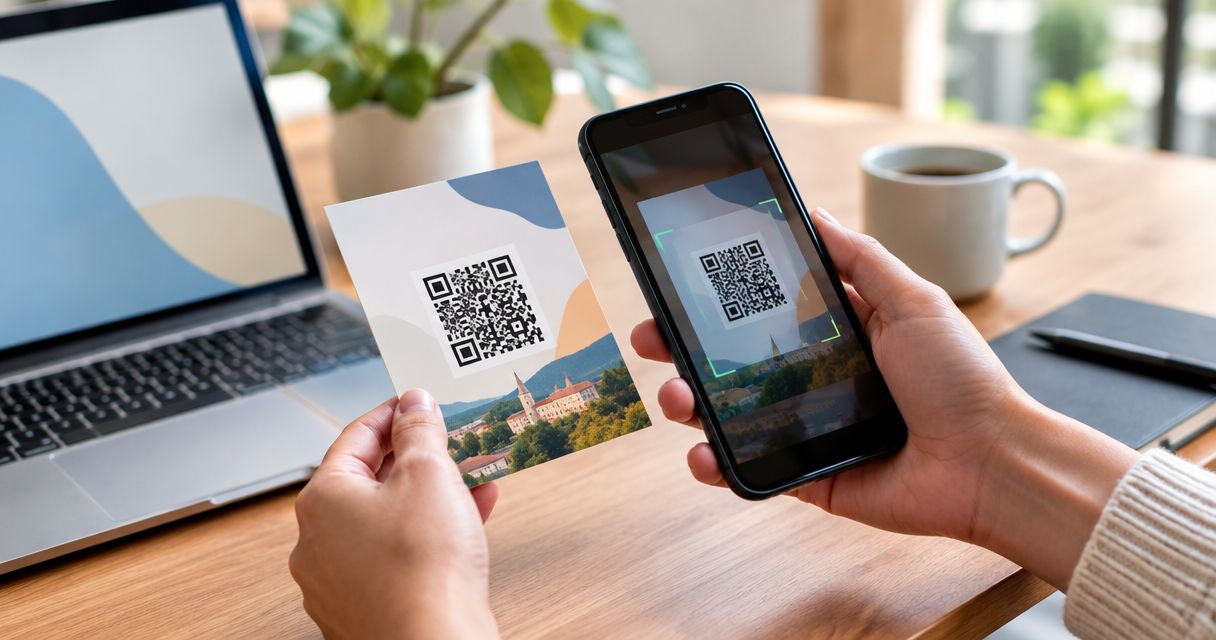
Instead of replacing a flyer whenever your offer changes, connect its QR code to your public HometownFirst specials page so customers can scan for the current details. Copy the customer-facing page address, encode it in a QR code, and test a printed proof before distributing the flyer.
- To connect QR code to HometownFirst specials page, encode the public page address—not your account dashboard.
- Use a direct QR code for a destination you intend to keep; editing page content does not change the encoded address.
- Test the printed flyer while signed out before distributing copies.
- Keep the offer wording on the flyer consistent with the destination page.
Why this matters
A QR code stores information that a phone can read. For this workflow, that information is a web address: scanning opens the destination, rather than copying the offer into the flyer itself.
HometownFirst is a local business directory best for independent businesses that want nearby customers to find their profiles and specials. A printed QR code gives customers another way to reach those details, but it does not replace a clear offer or a working public page.
Start with the customer-facing listing on HometownFirst, not the account screen you use to manage it. Your 2026 flyer should send customers somewhere they can understand without instructions from you.
The main limitation is simple: a direct QR code keeps pointing to the address originally encoded. Updating content at that address is different from moving the content to a new address.
Before you start
- Public destination and editing access: Have your business listing and special ready, plus access to correct the information. Open the customer-facing destination while signed out to confirm that it works for visitors.
- Flyer materials: Have a QR-code generator that accepts a web address, your flyer document, and a way to print a proof. Use a phone camera to test the finished print, not just the downloaded code.
- The gotcha: Decide whether the flyer promotes one particular offer or a continuing collection of specials. A flyer promising a specific offer becomes misleading if the destination later shows something different—even when the QR code still works.
Choose the destination before designing the flyer. Otherwise, you risk printing a code that opens an account page, the wrong location, or an offer that will disappear before the flyer does.
Destination setup
Confirm the customer-facing page
- Open the business listing as a visitor. Find the special you want customers to see, then open its public view if it has a separate destination.
- Copy the complete address from the browser’s address bar. Do not copy an editing link, account invitation, or preview that depends on your signed-in session.
- Open a private browsing window and paste the copied address. Read the page as a customer: confirm the business name, location, offer wording, and any stated conditions.
- Open that same address on your phone. Check that the intended information is easy to find without returning to a search screen.
- Save the verified address with your flyer project. This is the destination you will encode; keep it separate from account-management links.
Expected result: A signed-out visitor can open the saved address and find the intended special for the correct business location.
If a special does not have its own public address, use the closest public destination that actually displays it. Do not promise that scanning opens an individual offer when customers must first locate it within a broader listing.
For a 2026 campaign, check any dates already written into the offer. A correct link cannot fix outdated terms.
QR-code setup
Encode the verified address
- In your QR-code generator, choose the option for a website address. Use its web-link function rather than a contact card, plain-text message, or wireless-network code.
- Paste the verified public address into the destination field. Compare it against your saved copy before generating the code.
- Generate a plain, high-contrast code. Keep dark modules on a light background, and avoid adding decorative elements across the pattern.
- Preserve the blank border around the code. A standard QR code requires a quiet zone at least 4 modules wide on every side; a module is one small square in the pattern.
- Export the code in a format your flyer editor accepts. Use a vector file when supported, or a sharp raster image that will not become blurred when placed.
- Scan the exported image and open the result. Check the destination itself, not merely whether your phone recognizes a code.
Expected result: Scanning the exported QR code opens the verified public destination without requiring a business-owner login.
Button names differ between generators, so follow the function rather than looking for a particular label. Before exporting, also establish whether the code contains your destination directly or sends visitors through a redirect managed by the generator.
Choose direct or redirect-based linking
Both approaches can open the same page, but they create different maintenance responsibilities. Use a direct code when you intend to keep the destination address unchanged.
| Approach | Best for | Advantage | Limitation |
|---|---|---|---|
| Direct, static QR code | A public destination you intend to keep | Encodes the destination without a separate QR redirect | Changing the destination address requires a replacement code |
| Redirect-based QR code | A campaign whose destination needs to change | The redirect can point elsewhere without changing the printed pattern | Depends on continued access to, and operation of, the redirect service |
A static code does not become obsolete just because the text on its destination page changes. It becomes a problem when that address stops working or no longer matches the flyer’s promise.
A redirect adds flexibility, not immunity from mistakes. Confirm the generator’s terms and your control over destination changes before making it part of a long-running print campaign.
Flyer setup and print testing
Build the scan-to-special handoff
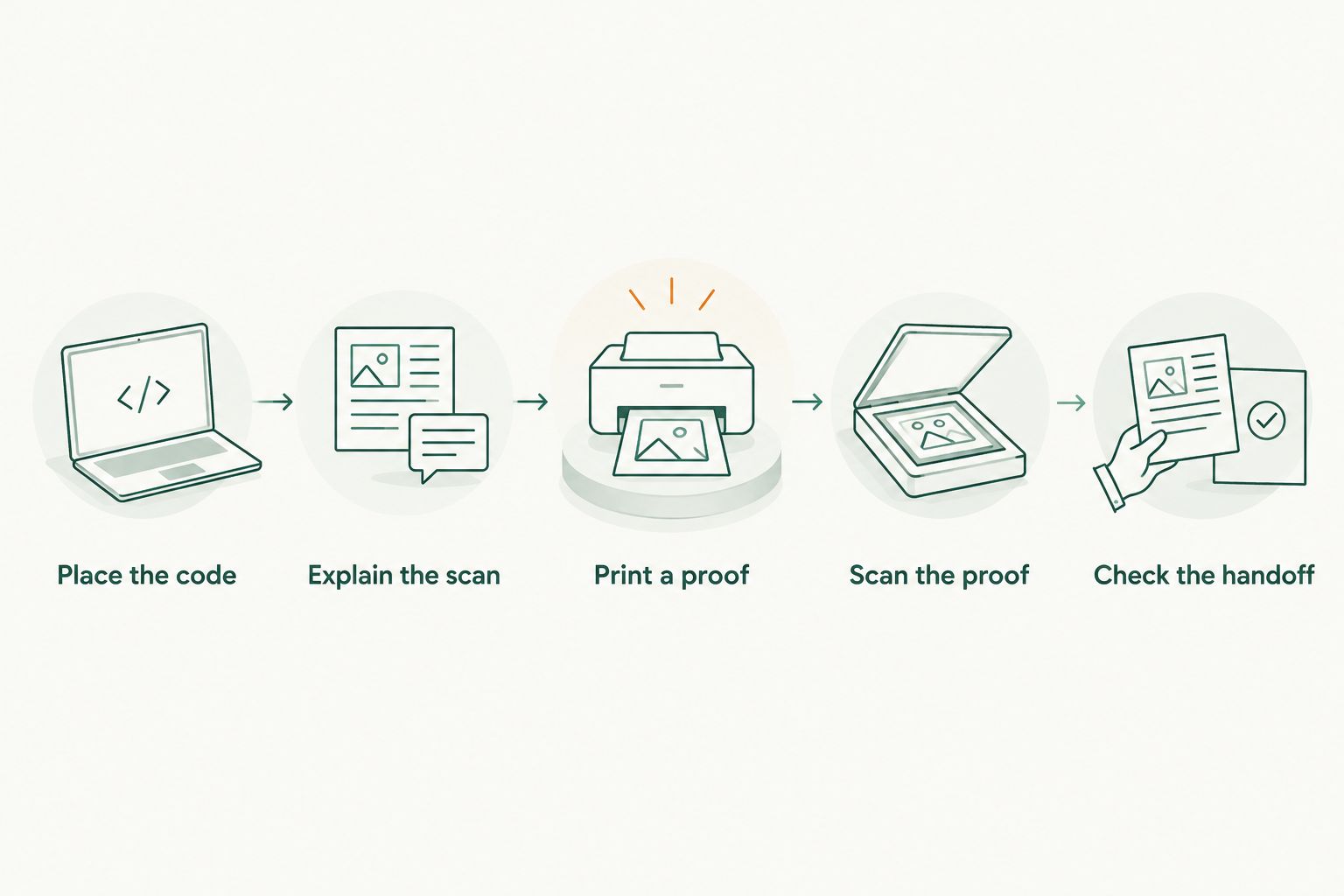
- Place the code. Put it on a plain area, away from folds, trim edges, and busy photographs. Preserve the quiet zone when resizing or cropping the image.
- Explain the scan. Add a short instruction such as “Scan to view current specials.” Use wording that accurately describes the destination rather than promising an unsupported reward.
- Print a proof. For a hand-held flyer, start your test with a code 30 mm wide, then adjust after testing. This is a starting size for your proof, not a guarantee that every code or placement will scan.
- Scan the proof. Print at 100% scale and test the actual paper under the lighting where customers will use it. Open the link while signed out.
- Check the handoff. Read the flyer, scan it, and compare the destination with the promise. Confirm the location, terms, and next action before approving distribution.
Expected result: The printed flyer scans in its intended setting and opens a page that delivers what the flyer promises.
Use the actual production material for your final check when possible. Glare, poor contrast, stretching, and a damaged printed pattern can interfere with scanning even when the original image works.
Before sending your 2026 flyer to print, ask someone who did not build it to complete the scan. Give them the flyer without coaching; check whether they reach and understand the intended special.
Keep the flyer useful when specials change
A second workflow suits a reusable counter card or notice: point customers toward current specials rather than naming one short-lived offer on the printed piece.
Best for: businesses that want reusable print materials while changing their offer content. The advantage is less dependence on fixed promotional wording; the limitation is that someone still needs to maintain the destination.
- Choose a public destination you intend to maintain, and verify that it displays the current specials.
- Keep the printed instruction general, such as “Scan to see current specials.” Avoid embedding a specific offer or expiry date unless you intend to replace the flyer with it.
- When editing a special, check whether the public destination address remains the same. Do not assume that replacing an entry preserves its address.
- Scan an existing printed copy after the update. Confirm both the working link and the accuracy of the new content.
- Replace the printed QR code if the encoded destination changes and you do not control a working redirect.
Expected result: Existing print materials remain useful only while the encoded destination works and the wording stays accurate.
This workflow requires no automatic connection between your printer and the directory. The printed pattern stays fixed; you maintain the information customers reach.
For your 2026 materials, keep a simple record of the flyer version, encoded destination, and where copies are displayed. That record tells you which pieces need attention when an address or offer changes.
Troubleshooting
The code opens an account or editing screen
Replace the encoded address with the public visitor destination. Test it in a private browsing window before generating another code; your usual browser session can hide an access problem because you are already signed in.
The image scans on screen but not on paper
Check the printed size, sharpness, contrast, and blank border. Remove stretching or decorative overlays, then print another proof and test it in the intended setting rather than repeatedly testing the original image.
Customers reach the wrong location or offer
Open the encoded address directly and inspect the page. If the address is wrong, replace the code or correct a redirect you control; if the address is right but the content is wrong, correct the listing content instead.
The flyer opens an expired or missing special
Update the destination only if the replacement content still matches the printed promise. Otherwise, remove or replace the flyer. A working page is not a valid substitute for an offer the paper specifically promises.
A redirect-based code stops reaching the page
Check whether the redirect still operates and whether you retain control of its destination. Test the final public address separately; this distinguishes a redirect problem from a destination-page problem.
Customize your workflow
Start with one verified destination and a clear scan instruction. Expand distribution only after the printed proof works and the destination explains the offer without extra help.
For separate locations, verify each destination before making location-specific flyers. Do not copy a QR image from an earlier layout and assume it points to the right branch.
Keep the responsibilities clear, too. Assign someone to check the public page when a special changes, and someone to remove printed materials when their promise no longer applies; these can be the same person.
If your next step is coordinating offline and online discovery, use the guide to connecting a listing to Google Business Profile. Treat each channel as another route to accurate business information, not as a reason to skip destination checks.
FAQ
How do I connect a QR code to my HometownFirst specials page?
Copy the public address that displays your special, encode it with a website QR-code generator, and place the exported code on your flyer. Test a printed proof while signed out before distributing it.
Do I need an integration to make a QR flyer work?
No integration is needed for a QR code that opens a public web page. The code contains a destination address, and the customer's phone opens that address after scanning.
Can I change the special without reprinting the QR code?
Yes, if the encoded destination stays the same and the revised content still matches the flyer. If the destination address changes, a direct QR code needs replacing.
Should I use a static or redirect-based QR code?
Use a static code for a destination you intend to keep unchanged. Choose a redirect-based code when destination changes are necessary and you can maintain control of the redirect service.
Why does my QR code open the page for me but not for customers?
Check whether you encoded an editing or account-only address. Open the destination in a private browsing window to verify that visitors can reach the intended content without your account access.
How big should the QR code be on my flyer?
Start a hand-held flyer proof with a code 30 mm wide, then test the actual print and adjust. Preserve the required quiet zone and enlarge the code if your intended scanning conditions demand it.
Does a QR code prove that someone used my special?
No. Opening a destination is different from redeeming an offer or completing a purchase. Do not treat scan activity as proof of sales or redemption.
One last thing
A QR code can work perfectly while the flyer fails. Scanning proves that a phone can read the pattern; it does not prove that the destination matches the promise.
Keep one printed copy of every active 2026 flyer. Whenever an offer changes, scan that copy and read the destination as a customer would. That small check catches the gap between a technically working link and a useful invitation to visit a local business.