
Instead of copying each local special onto your website by hand, use an official specials embed if HometownFirst supplies one for your listing. Confirm that option before editing your site; if no supported embed is available, use a clearly labeled directory link rather than installing unverified widget code.
- To embed hometownfirst specials widget on website pages, first confirm that an official embed exists for your listing.
- Use supplied embed code unchanged; a listing address alone is not widget code.
- Test the published page on narrow and wide screens before announcing it.
- A directory link is the fallback when a supported embed is unavailable; it does not display specials inline.
Why this matters
HometownFirst is a local business directory for independent businesses that want nearby customers to discover their profiles and specials. An embedded display serves a different purpose: showing directory content inside your own website. A business listing does not, by itself, establish that an embeddable display exists.
For your 2026 website update, settle that distinction first. Start with HometownFirst to confirm the directory destination, then establish whether an official website embed is offered for your account. Do not treat an ordinary page address as an installation snippet.
The goal is straightforward: visitors should understand the special, identify the business offering it, and know what to do next. A broken display or an unclear link works against that goal.
Before you start
- Access: Have permission to manage the business listing and edit the intended website page. If someone else maintains your website, give that person the approved instructions rather than sharing your password.
- Materials: Obtain the official installation instructions and supplied code, if offered. Confirm which business location and content the code displays before placing it anywhere public.
- The gotcha: Confirm that your website editor permits the supplied code type. An editor can accept text while removing scripts or embedded frames when you save; seeing code in the editor does not prove it will work on the published page.
Do not create your own iframe around a listing address. Websites can restrict whether other sites display their pages in frames. A generic iframe also does not establish content filtering, refresh behavior, or a supported mobile layout.
Choose the supported display method
There are two practical routes, but they do different jobs. Choose based on confirmed support, not on which option sounds more automatic.
| Method | Best for | Advantage | Limitation |
|---|---|---|---|
| Official embed, if supplied | Businesses with confirmed embed support | Displays supported content within the website page | Depends on the supplied code, website permissions, and documented behavior |
| Directory link | Businesses without a supported embed | Gives visitors a direct route to the directory | Sends visitors away from the website and does not display specials inline |
Neither route should promise automatic updates unless that behavior has been confirmed. The directory supports business profiles and specials; the website display method needs its own verification.
Source verification
Confirm the source
- Ask the directory contact or account administrator whether an official specials embed is supported for your business listing.
- Request the exact installation instructions. Ask whether the supplied code displays a single location, several locations, or a broader directory view.
- Confirm how additions, edits, and expired specials are handled. Ask whether website changes are needed after each listing update.
- Record the response with a 2026 verification date so the next person maintaining the website can distinguish current instructions from an old note.
Expected result: You have either approved embed code with installation instructions or a clear decision to use a link. If neither exists yet, stop here rather than guessing the next step.
Check the content
- Review the business name, location, and special at the source before installing anything.
- Read any conditions associated with the special. Make sure the website introduction does not omit a restriction that changes its meaning.
- Identify the intended destination for visitors who want more information. Check that it belongs to the correct business or directory destination.
Expected result: The source content matches the business and location you intend to promote. Installing an embed cannot correct an inaccurate source listing.
Website placement
Prepare the page
- Choose a page where visitors already look for business updates or specials. Avoid placing unfamiliar third-party code across every page before testing it in one location.
- Make a recoverable copy of the page or use your website's revision process before editing.
- Add a short introduction explaining what visitors will find. Describe the content plainly rather than promising instant updates or a particular display format.
- Identify the editor feature that accepts the code type specified in the official instructions. Use your website platform's documented method; a text block and a code-capable block are not interchangeable.
Expected result: You have a prepared placement, a recovery path, and an editor feature suitable for the supplied code. No live content has been replaced without a way back.
Install the code
- Copy the official snippet exactly as supplied. Preserve its source address, attributes, and any accompanying instructions.
- Insert it using the website editor's documented code-placement method. Put page-level code and site-wide code only where the installation instructions specify.
- Leave unfamiliar settings unchanged. Do not remove attributes or add script permissions simply to make an error disappear.
- Preview the page, then save or publish according to your website's normal process. The public page is the final check, not the editing canvas.
Expected result: The published page displays the intended content without showing raw code. If it does not, keep the previous page version available while you investigate.
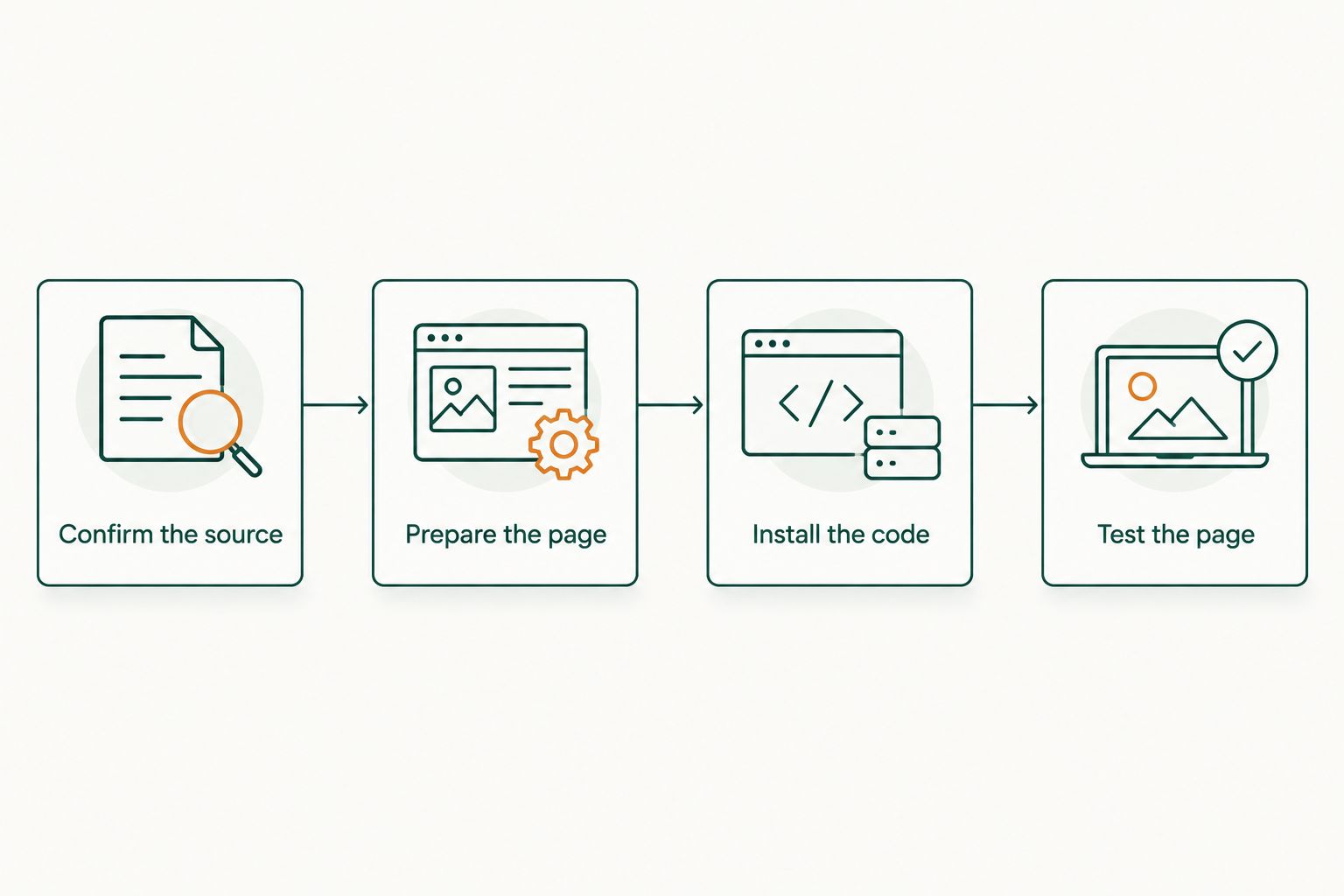
The installation sequence is Confirm the source, Prepare the page, Install the code, and Test the page. Keep that order: it prevents an unsupported code experiment from becoming a live website problem.
Published-page checks
Test the page
- Open the published page in a browser session where you are not signed into the website editor or business account. Confirm that customers can see the intended public content.
- Check the layout at widths of 360 pixels, 768 pixels, and 1280 pixels. These are selected test widths, not claimed compatibility limits. Look for clipped text, overlapping content, and sideways scrolling.
- Follow each visible action through to its destination. Confirm that the business and location remain correct after the visitor leaves your page.
- Test with keyboard navigation. Check that visible links and controls can receive focus and that you can move past the embedded area.
- Note the page address, test date, and result in your 2026 maintenance record. Include any conditions required for the display to work.
Expected result: A signed-out visitor can read the content, follow its actions, and continue using the page at the tested widths.
Review the fallback
Check what visitors see when the external content does not load. Your page introduction should still explain the section; avoid leaving a heading that appears to promise content beneath an empty space.
If you include a fallback link, label the destination accurately. A link to a directory homepage should say that it opens the directory, not that it opens your business's current specials.
Expected result: The surrounding page remains understandable even when the external display is unavailable. A fallback helps visitors, but it does not fix the underlying installation.
Update the website display when a special changes
A second workflow applies only when the official embed documentation confirms that it reads updates from the source listing. Do not assume that every supplied snippet refreshes its content automatically.
- Make the approved change to the source special.
- Check that the changed content appears publicly in the directory.
- Follow any documented refresh or cache instructions for the embed.
- Open the website page while signed out and compare the display with the source.
- Check that an ended special no longer appears as current, following the documented behavior.
Expected result: The website display agrees with the published source after the documented update process. If a supplied snippet contains fixed text instead, treat website changes as a separate publishing task.
For your 2026 publishing routine, assign responsibility for this check to a named person. Automatic display does not remove the need to verify that the source special is accurate.
Troubleshooting
The page shows code instead of specials
The snippet has been treated as text rather than executable or embedded content. Return to the website platform's documented installation method and use the appropriate code-capable feature. Do not keep pasting the same snippet into ordinary text areas.
The code disappears after saving
Your editor or account permissions can restrict particular code types. Ask the website administrator to check the platform's rules and your editing permissions. Do not disable security controls across the website to accommodate an unverified snippet.
The embedded area is blank
First check whether the source content opens separately. Then inspect any browser error and compare it with the installation instructions. If the browser reports that framing is refused, do not try to bypass the restriction; obtain a supported method or use the link alternative.
The wrong location or old special appears
Compare the public directory content with the website display. If the source is wrong, correct the source first; if only the website is wrong, confirm the snippet's location selection and documented caching behavior. Avoid changing unrelated website settings during the diagnosis.
The display runs off the screen
Check the container width and any fixed dimensions against the official instructions. Do not invent resize scripts or remove unfamiliar code attributes. If the supported display cannot fit the intended placement, move it to a suitable page area or use a link.
Customize your workflow
Keep website display and social publishing as separate tasks. Confirming an embed does not establish that an account can automatically publish to another service, and confirming social publishing does not establish website embed support.
If Facebook is also part of your local outreach, use the guide to automatically posting local deals to Facebook as a separate starting point. Verify the available connection and permissions before building it into your routine.
Give your 2026 maintenance note a practical purpose: record who owns the source content, who can change the website code, and what to do when the display fails. That is more useful than a screenshot with no explanation.
FAQ
Can I embed a HometownFirst specials widget on my website?
Proceed only after confirming that an official specials embed is supported for your listing. A business listing or public page address alone is not installation code.
Where do I get the widget code?
Request approved installation instructions from the directory contact or account administrator. Do not substitute a third-party snippet that merely claims to display the same content.
Can I paste my listing address into an iframe?
Do not use a listing address as an iframe unless the official instructions explicitly support that method. The source website can restrict framing, and a page address does not establish widget behavior.
Will the website update whenever I change a special?
Automatic updates depend on the confirmed behavior of the supplied embed. Follow its documented refresh process and compare the published website display with the source after a change.
What website access do I need to install an embed?
You need permission to edit the intended page and insert the supplied code type. Some editors restrict scripts or frames even when ordinary page editing is allowed.
What should I do if an embed is not supported?
Use a clearly labeled link to an approved directory destination. A link takes visitors to the directory; it does not show specials inside your website.
How do I check that the display works for customers?
Test the published page while signed out of your editing accounts. Check narrow and wide layouts, follow visible actions, and confirm that the correct business content appears.
One last thing
A listing can remain correct while its website display is wrong. Check both ends of the connection after changing a special, replacing website code, or moving the display to another page. A successful installation is not a permanent accuracy check.