
Instead of checking two business listings from memory whenever your hours change, use one approved schedule to sync business hours between HometownFirst and Yelp through separate updates and public checks. This 2026 guide covers that coordinated workflow—not an automatic connection between the platforms.
- Sync business hours between HometownFirst and Yelp using one approved schedule, separate updates, and public verification.
- Keep regular business hours separate from dated holiday hours and temporary closures.
- Assign one person to approve changes and another to check the public listings.
- An update is complete only when both public listings show the intended schedule.
Why this matters
A customer needs to know whether your door will be open when they arrive. Conflicting hours leave that question unanswered, even when your address, description, and phone number are correct.
HometownFirst is best for independent businesses seeking local directory discovery. Its listings help nearby customers find businesses, specials, and events; maintaining accurate details still needs an assigned owner. A directory listing does not replace your internal operating schedule.
Use HometownFirst as one customer-facing destination, not as your only record of approved changes. The workflow below keeps the decision about hours separate from the work of publishing them.
For your 2026 listing maintenance, define success clearly: both public profiles must describe the same customer-facing schedule for the same location. Saving an edit is an intermediate step. Checking what customers actually see is the finish line.
Before you start
- Listing access: Have authorized access to both business listings, or identify the administrator who can submit changes. Confirm that each profile belongs to the correct location before preparing an update.
- Approved schedule: Gather the regular weekly hours, upcoming exceptions, location address, and the name of the person who approves changes. Keep these together in a shared document that the responsible staff can access.
- The gotcha: A holiday closure is not a permanent weekly change. Decide whether the update affects recurring hours or a specific date before touching either listing; otherwise, a temporary exception can become the standing schedule.
Do not begin by changing whichever account is easiest to access. First settle what the hours should be. If your team disagrees about whether the last appointment, final seating, or closing time belongs on the listing, resolve that difference before publishing.
This guide does not depend on particular button names or an assumed integration. Use the editing controls actually available in your account. If you cannot edit the relevant details, give the approved schedule to the listing administrator and keep the update open until the public result is checked.
Choose your hours-maintenance workflow
Two related workflows cover different needs. Use the recurring workflow for your normal operating week and the dated workflow for exceptions; neither should overwrite the other by accident.
| Workflow | Best for | Advantage | Limitation | Completion check |
|---|---|---|---|---|
| Regular-hours update | Permanent changes to the weekly schedule | Establishes a clear baseline for both listings | Does not explain a one-day exception by itself | Every weekday matches the approved schedule |
| Dated exception | Holiday hours, special openings, and temporary closures | Keeps the exception tied to its intended date | Needs a follow-up check after the exception | The exception is correct and the regular schedule remains intact |
Use regular-hours updates for permanent changes and dated exceptions for temporary changes. When the available listing controls cannot represent an exception clearly, ask the listing administrator how to communicate it accurately. Do not invent a workaround that leaves customers guessing.
For a broader explanation of the two directories, read the HometownFirst vs Yelp comparison. Keep the operational task separate from the platform choice: wherever your business is listed, its hours need to reflect the same approved decision.
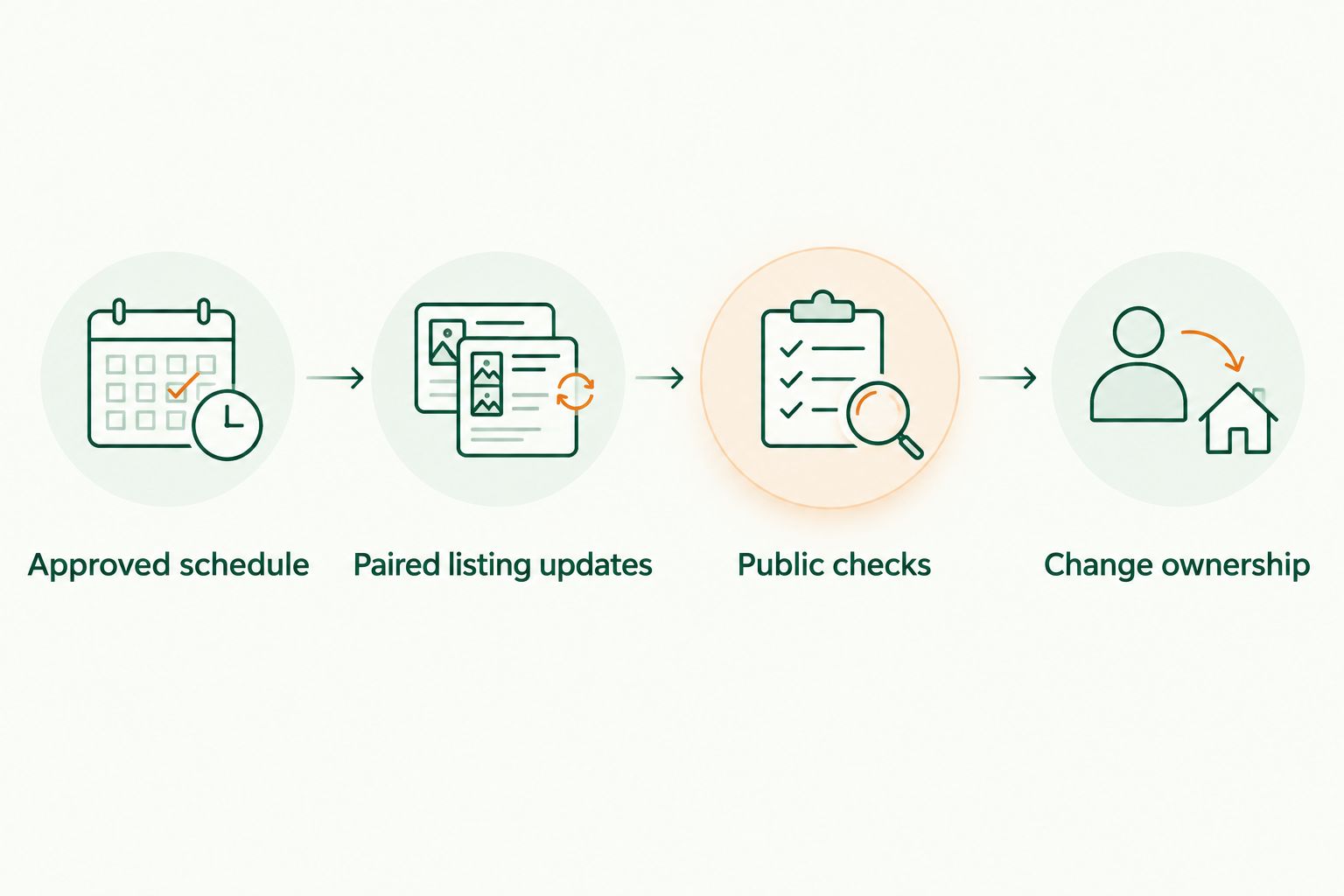
Approved schedule
Build the record before editing listings
- Identify the location using its business name and street address. For a business with multiple locations, create a separate schedule record for each address.
- Write out all 7 days of the regular week. Specify an opening time and closing time for every open day, and explicitly mark closed days.
- Record separate opening periods where the business closes between services. Do not turn a lunch opening and an evening opening into one uninterrupted day.
- Add dated exceptions beneath the regular schedule. Include the complete date and whether the exception means different hours or a full closure.
- Have the responsible manager approve the record. Add an approval date and the person's name so the updater knows which version to use.
Expected result: You have one approved schedule for one location, with recurring hours and dated exceptions clearly separated.
Use plain language in this record. Write “closed” rather than leaving a day blank, and use the same time format throughout. A blank entry does not tell the updater whether the business is closed or whether someone forgot to supply the hours.
For your 2026 record, include the year on every dated exception. That keeps a copied holiday note from being mistaken for a current instruction. Also distinguish customer-facing hours from staff shifts: an employee arriving before opening does not mean customers can enter then.
Treat the document as the source of the decision, not a mirror of whichever listing was edited most recently. If a profile differs from the record, investigate the difference rather than immediately copying it elsewhere.
Paired listing updates
Apply the approved schedule to each profile
- Open the first business listing through your authorized account. Check the address against the approved record before making changes.
- Locate the available controls for business hours. Enter the recurring schedule exactly as approved, preserving closed days and separate opening periods where supported.
- Handle dated exceptions separately from the recurring schedule. If the account does not provide a clear way to represent the exception, send the details to the listing administrator instead of changing unrelated fields.
- Submit the change using the account's available action. Record the submission date and whether the update is awaiting any further action.
- Repeat the process for the second listing using the same approved record—not the first listing's display.
Expected result: Both listings have received the same approved update, or the record clearly identifies which listing still needs administrator action.
Working from the same record matters because the first edit can contain a typo. Copying that edit into the second platform would spread the error. Independent entry from the approved schedule gives you a separate opportunity to catch it.
Do not mark a listing complete because you remember submitting the change. Keep “submitted” and “publicly checked” as different statuses. Your record should show which stage each destination has reached.
When the task is delegated, send the exact schedule rather than a loose instruction such as “please fix our weekend hours.” Include the location, affected days, effective date, and whether the change is permanent. That gives the administrator enough information to act without interpreting your intent.
Public checks
Verify the schedule customers can see
- Open each public business profile outside the editing screen. Use the profile for the exact address you updated.
- Compare every weekday with the approved schedule. Check opening times, closing times, closed days, and any separate service periods.
- Check dated exceptions independently. Confirm that an exception applies to the intended date rather than replacing the normal weekly hours.
- Record the result for each listing. If the public schedule is wrong, leave the task open and note the precise mismatch.
- Close the task only after 2 public checks are complete: one for each listing.
Expected result: Both customer-facing profiles match the approved schedule, and your record shows when they were checked.
A screenshot can help document what you saw, but it does not replace reading the hours carefully. Compare the actual times rather than relying on a quick visual impression. Pay particular attention to morning versus evening and to days that sit next to each other in the editor.
For a 2026 change log, keep these entries together: location, effective date, approved schedule, submission status, and public-check date. This is a working record, not a reporting project. Its purpose is to show the next person what has changed and what remains unfinished.
Never treat one correct listing as proof that the other is correct. Verify both destinations directly.
Change ownership
Keep the process running after setup
- Assign one schedule approver and one listing updater. In a small business, the same person can hold both roles, but the responsibilities still need to be explicit.
- Set a recurring 10-minute weekly review as a starting routine. Use it to inspect upcoming exceptions and any unfinished listing changes, not to retype unchanged hours.
- Ask staff to report approved changes through the shared record. Avoid leaving the only instruction in a private message that another updater cannot see.
- Keep a backup administrator identified for absences. Share access through the account's permitted arrangements rather than passing credentials around casually.
Expected result: A change has a clear owner, a destination, and a completion check, even when the usual updater is unavailable.
The review duration is a suggested routine, not a platform processing time. Give a complicated change the attention it needs. A permanent schedule change should start when it is approved; it should not wait simply because the weekly review is several days away.
The sequence is straightforward: approve the hours, update both listings, inspect the public results, and record completion. Repeat it whenever the approved schedule changes.
Update holiday hours whenever a date changes
The dated-exception workflow begins with a calendar decision rather than a new weekly schedule. Use it for a holiday closure, a special opening, or another temporary change that has a defined date.
- Add the exception to the approved record with its full date, location, and customer-facing hours.
- Confirm whether the business returns to its usual schedule afterward. If not, create a separate permanent-change instruction.
- Submit the exception to both listings using their available controls or the listing administrator.
- Check both public profiles for the correct date and hours.
- After the exception, confirm that the regular schedule is still accurate.
For your 2026 holiday calendar, give each exception its own entry. Do not reuse a previous holiday's instructions without checking the actual operating decision for the new date.
Best for temporary changes: the dated-exception workflow preserves the distinction between “closed on this date” and “closed every week.” Its limitation is the extra follow-up: someone must confirm that the exception has not left an incorrect standing schedule behind.
If an exception becomes a permanent change, approve a new regular schedule. That is a different task, even if the opening and closing times happen to be identical.
Troubleshooting
You cannot edit one listing
Stop at the access problem rather than updating only the easier destination and forgetting the other. Identify the authorized administrator, send the approved schedule, and record the outstanding action. The paired task stays open until both public listings pass the check.
The submitted hours differ from the public profile
Confirm that you edited the correct location and submitted the change. Then inspect the account for any outstanding instructions or status messages. If the discrepancy remains, contact the platform's support through the options available in your account; do not assume a processing deadline.
A holiday closure replaced normal weekly hours
Compare the recurring schedule against the approved record and correct the affected weekday. Handle the closure as a dated exception through the available process. Recheck both the exception and the following normal week before closing the task.
Staff keep restoring an older schedule
Check which record they are using and who approved it. Replace conflicting instructions with one current schedule and make the change owner clear. Another round of edits will not solve a disagreement about the business's actual hours.
A split day appears as continuous opening
Check whether the listing's available controls can represent separate opening periods. If they cannot, ask the administrator how to present the schedule accurately. Do not publish uninterrupted hours when the business closes between services.
Customize your workflow
Add more locations only after the basic process is working. Each address needs its own approved schedule and public checks; a correct update at one branch does not establish the hours at another.
Keep related customer-facing details nearby without mixing them into the hours field. Appointment instructions, service cutoffs, and event details answer different questions. Review them when hours change, but present them through the appropriate listing information.
You can also expand the checklist to another directory. The guide to connecting a listing to Google Business Profile covers an adjacent listing task. Apply the same discipline: one approved decision, separate destination checks, and no assumed automatic transfer.
FAQ
How do I sync business hours between HometownFirst and Yelp?
Use one approved schedule, update each listing separately, and verify both public profiles. Keep recurring hours distinct from dated exceptions and record any unfinished administrator action.
Does this workflow automatically transfer hours between the platforms?
No. This guide describes coordinated updates and public checks, not an automated connection or a verified direct integration.
What should I prepare before updating business hours?
Prepare authorized listing access, an approved schedule for the correct location, and any dated exceptions. Identify the administrator before starting if you cannot edit either listing yourself.
How do I keep holiday hours from changing my regular schedule?
Treat holiday hours as a dated exception rather than a permanent weekly change. Use the available exception process, then verify that the regular schedule remains correct afterward.
How often should I check my business hours in 2026?
Check both listings whenever approved hours change and include unfinished updates in a weekly review. The review is a suggested maintenance routine, not a substitute for checking each submitted change.
What should I do if the public listing still shows the wrong hours?
Check the location, submission status, and any outstanding account instructions first. If the mismatch remains, contact the listing administrator or use the platform's available support options.
Can I use one schedule for several business locations?
Use a separate approved record for each location. Shared hours do not remove the need to confirm each address and inspect each public listing.
One last thing
A correctly saved edit can still be an unfinished task. Your customer sees the public profile, not the editing screen or your internal note.
Make that distinction part of your 2026 routine: approve, submit, verify. When someone asks whether the hours are updated, the useful answer is that both public listings have been checked against the approved schedule.